
NOTE: Basic plan users cannot download PDF reports. Plus plan users can download one PDF report per month (based on billing cycle). Pro plan users have unlimited PDF report downloads.
*Accountability partners only have access to download a PDF report on the PRO level plan. Monitors and Testers/Self Testers are able to download them on either the PLUS or PRO plan.
Downloading a PDF Report from the BACtrack View Web Portal
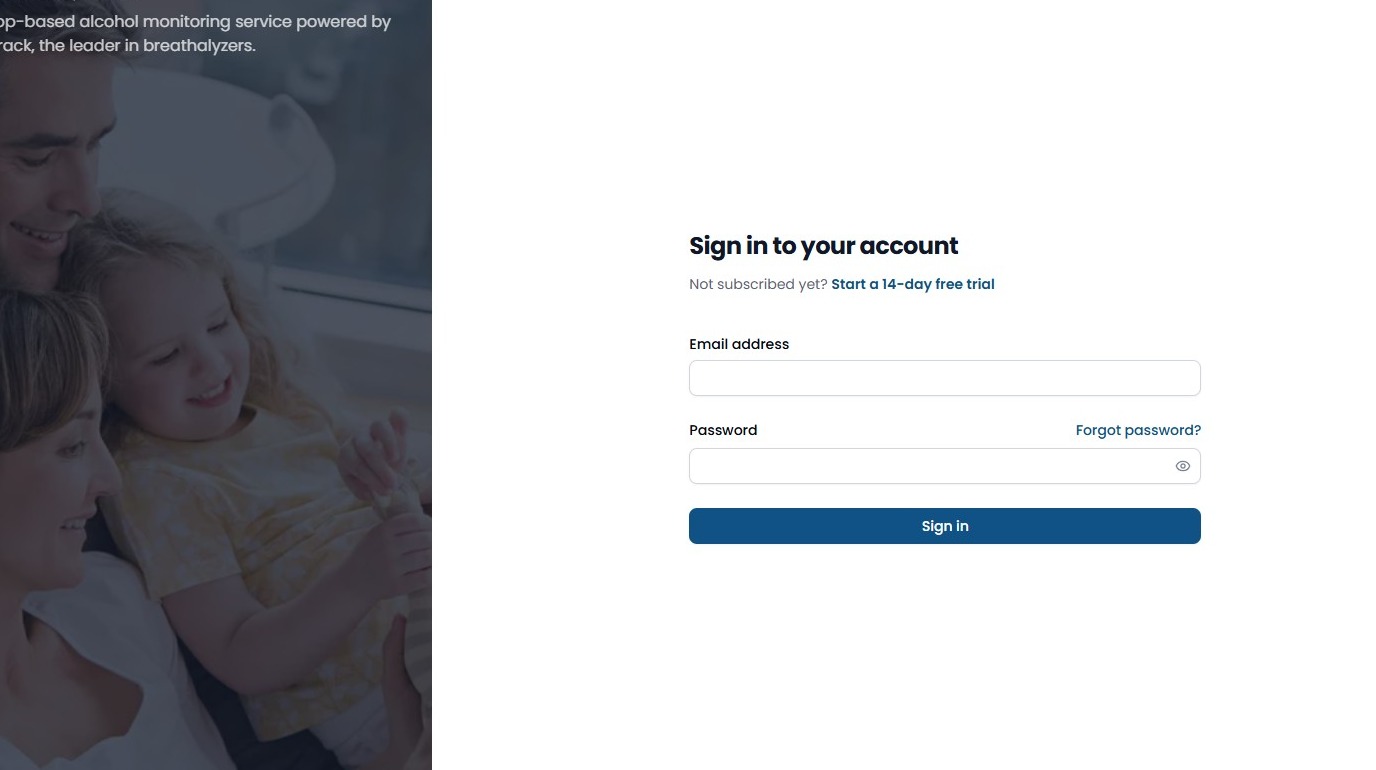
1. Navigate to https://view.bactrack.com/sign-in Enter the same email address and password you use for the BACtrack View app. If you don’t use the app, please enter the email and password you created when setting up your account.
Click Sign In.
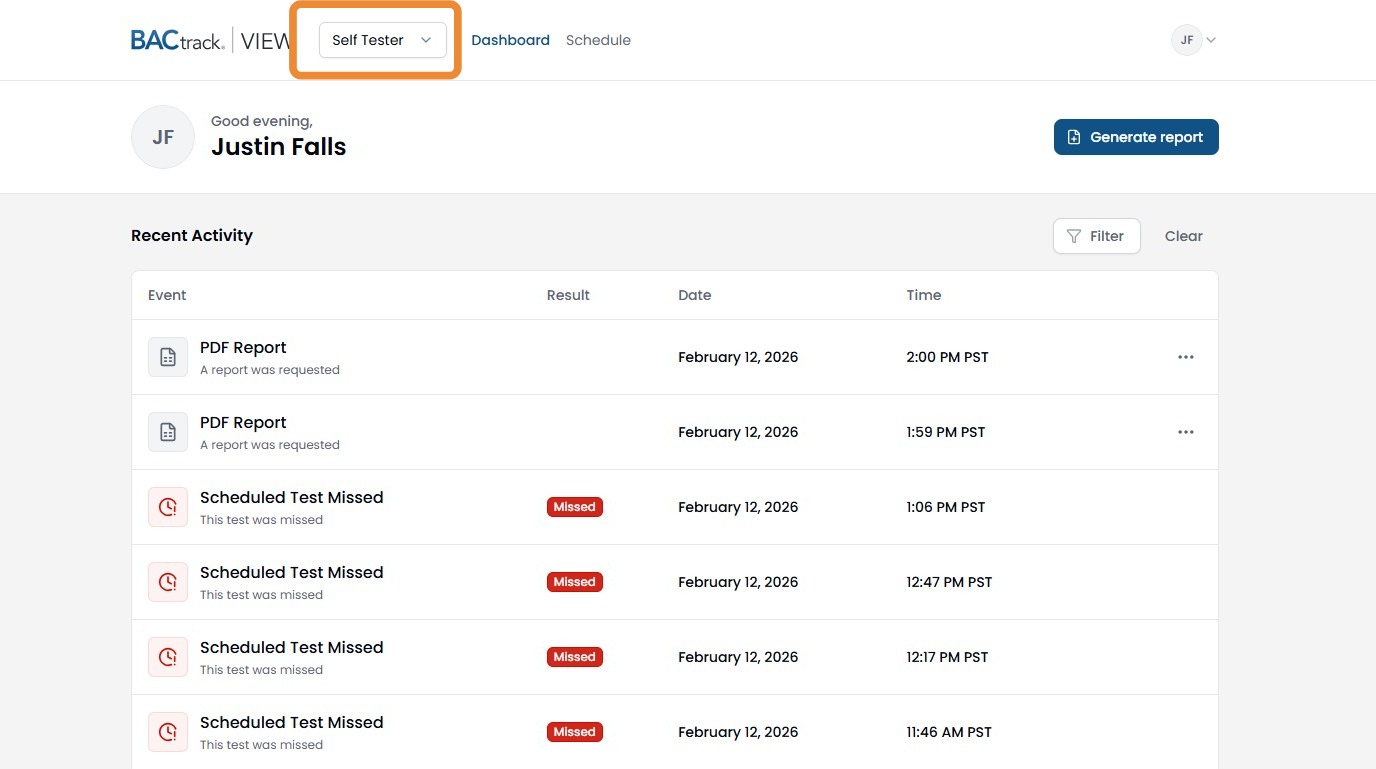
2. There will be a drop down at the top of the screen. If you have access to multiple accounts, you can select the person for whom you wish to download a report.
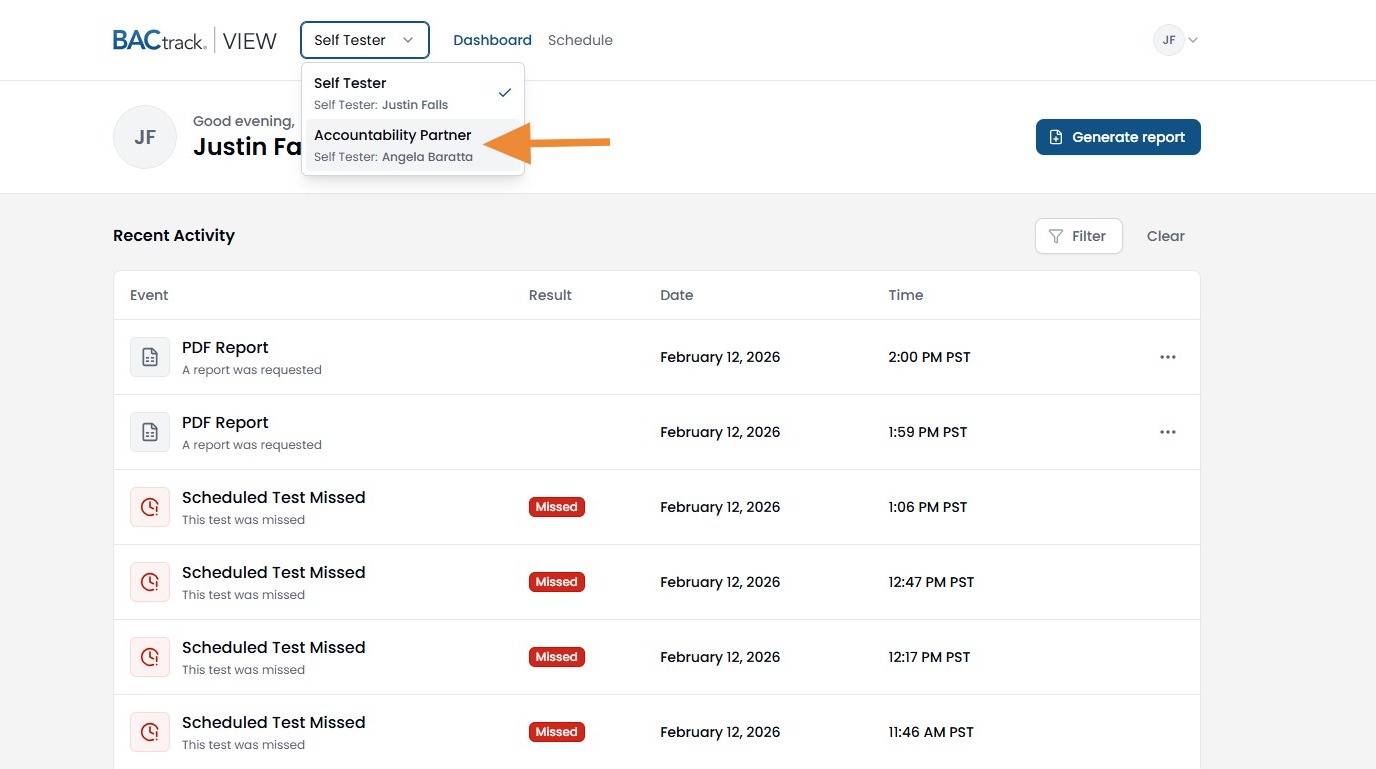
3. Select the account you wish to view.
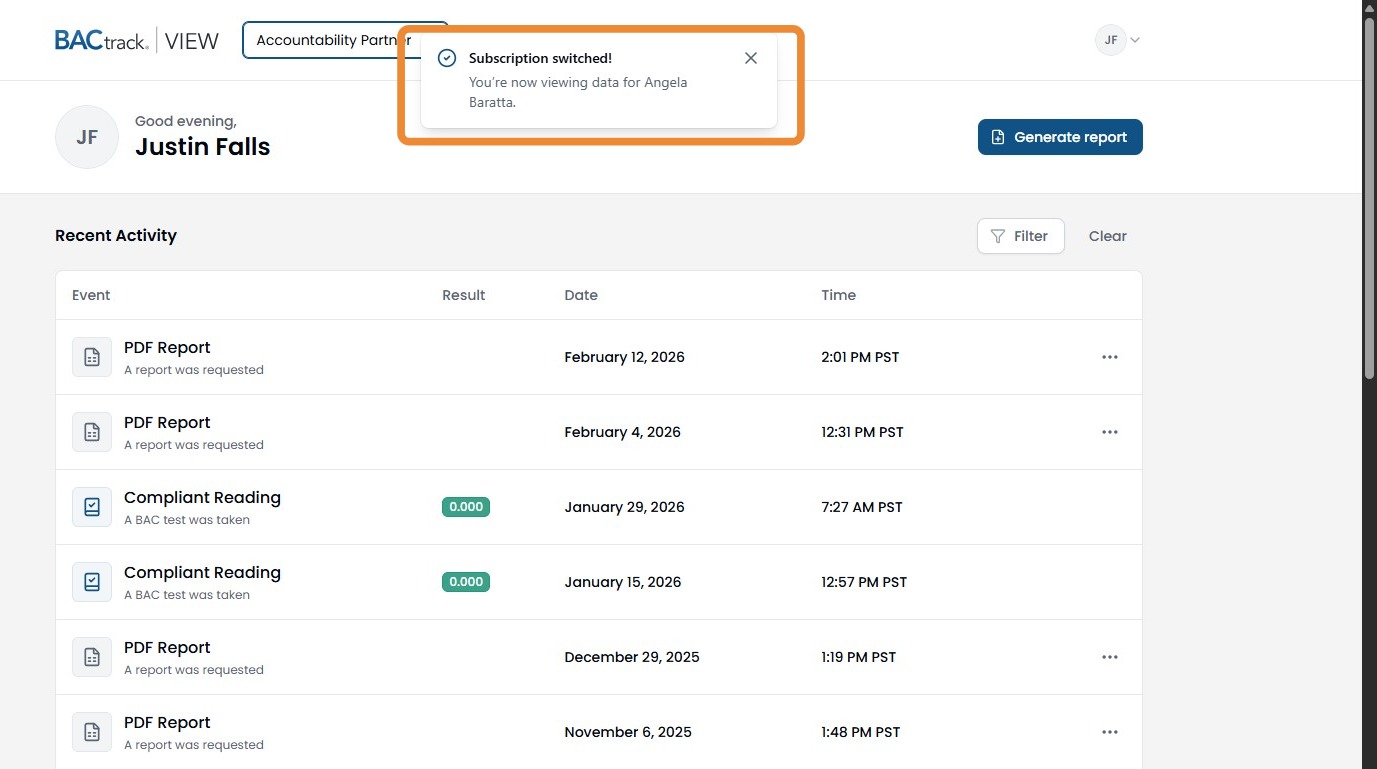
4. You will see a confirmation that you switched account views.
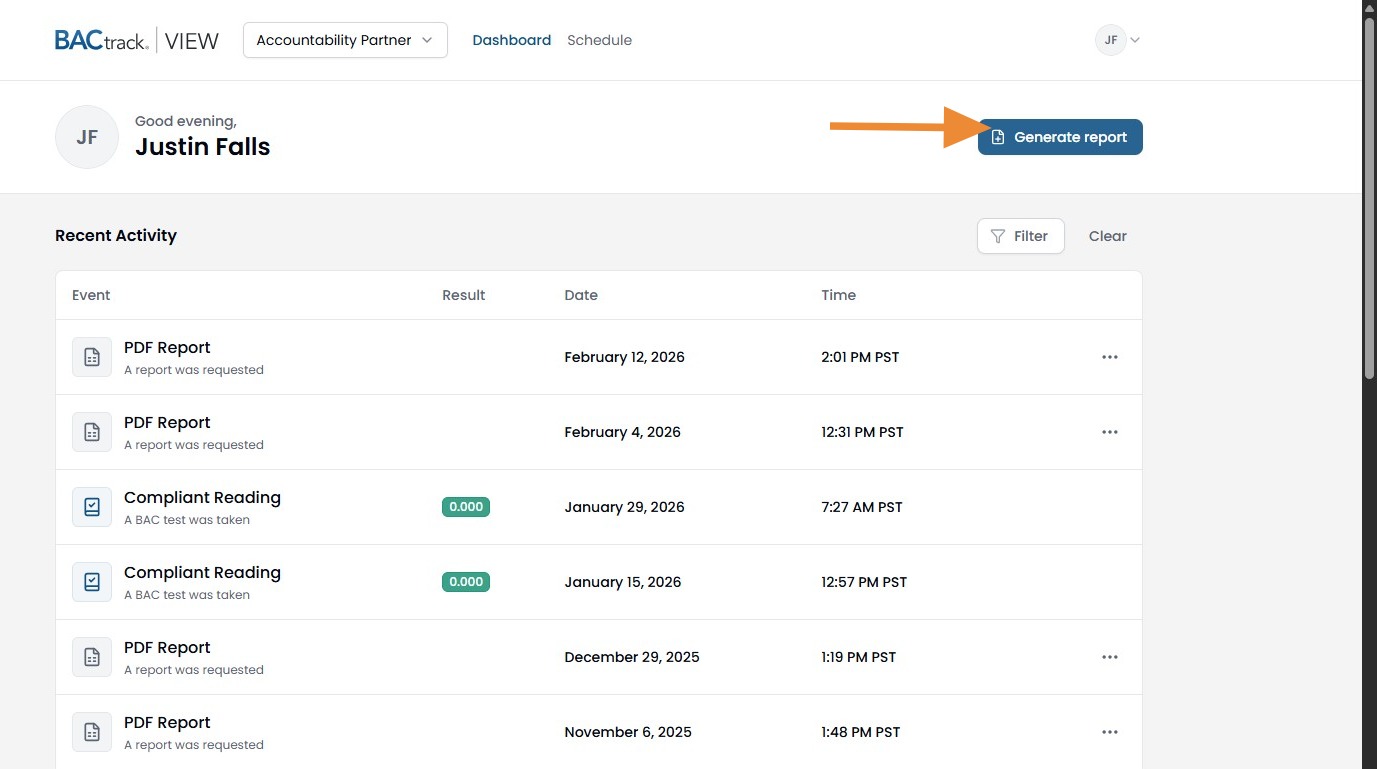
5. Click "Generate report" in the right corner.
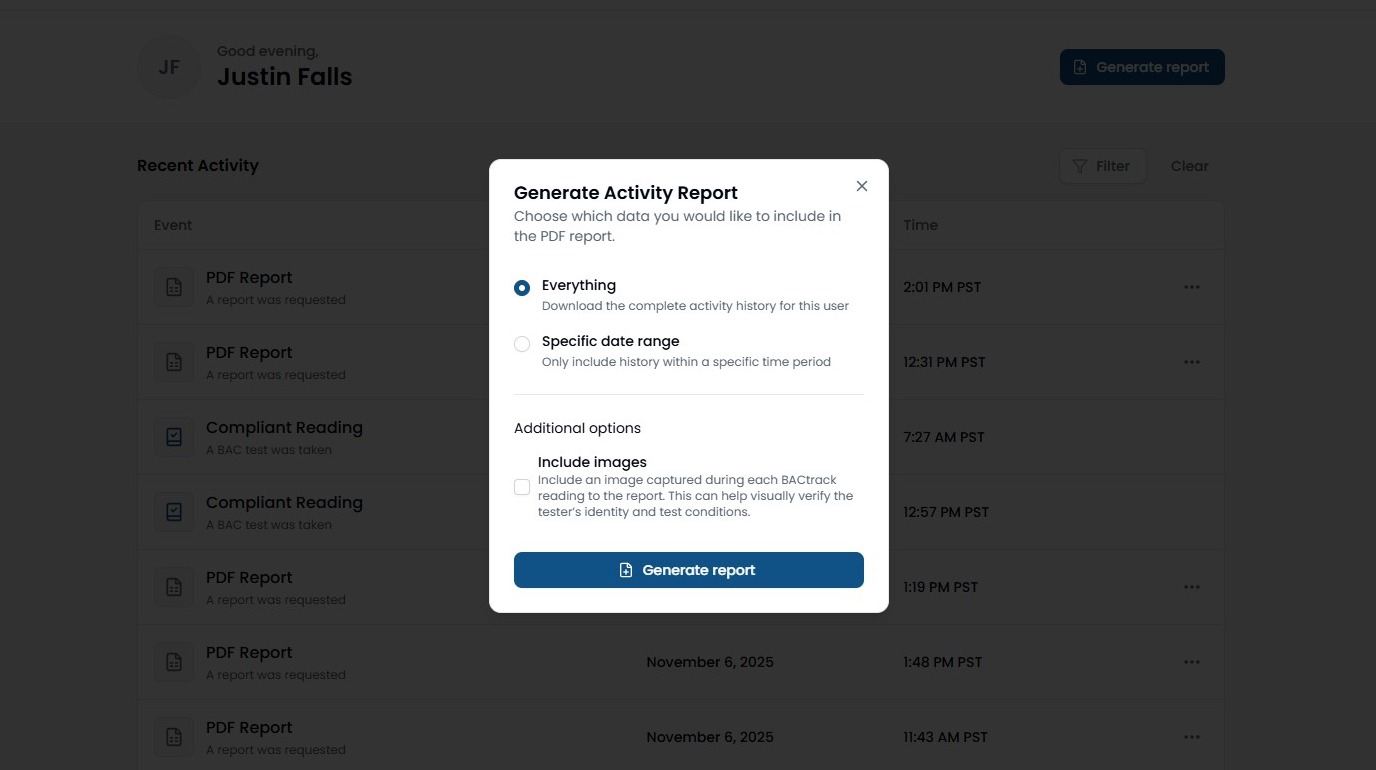
6. Here you can customize what is displayed on this report including:
Everything (all tests from when the account started)
Specific Date Range
Include Images (Includes a still image from all tests taken in the specified date range)
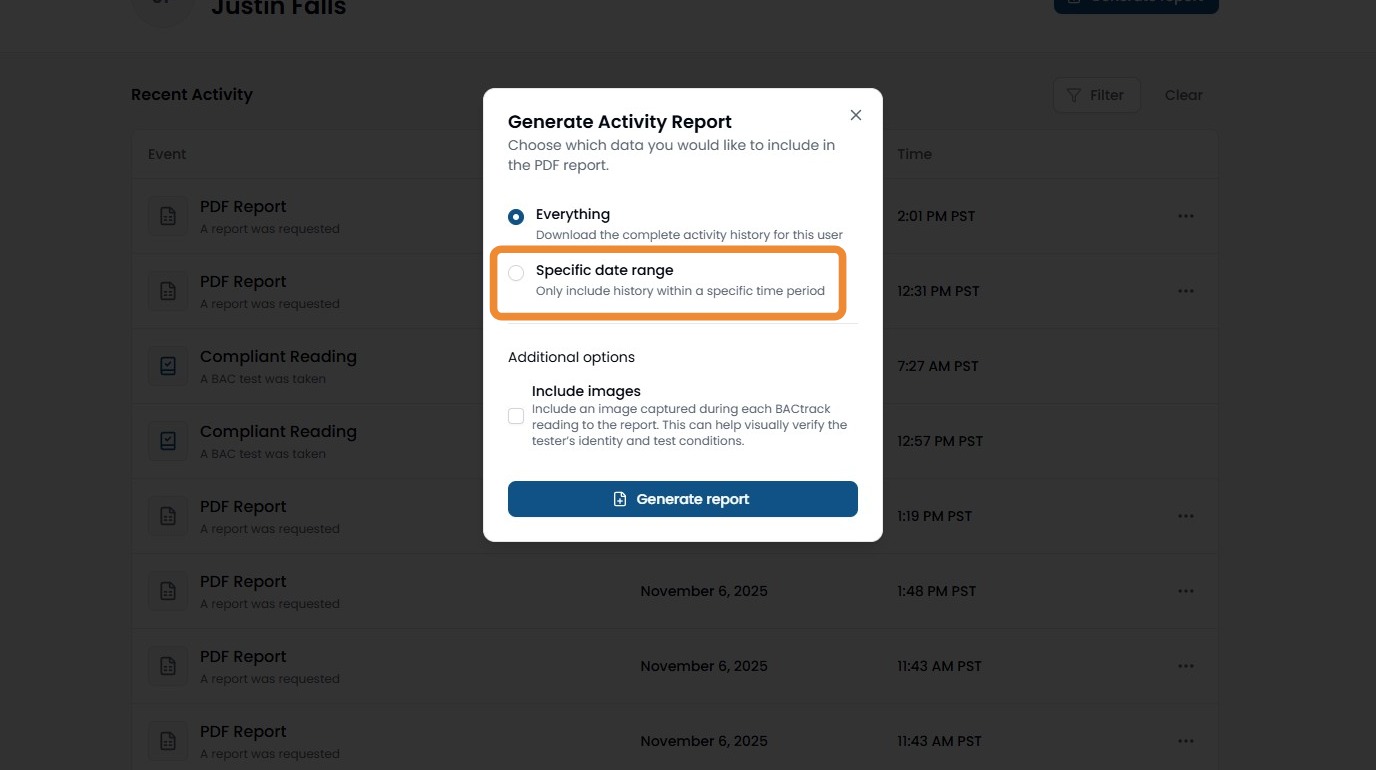
7. If you do not need all tests taken, click the circle next to Specific Data Range.
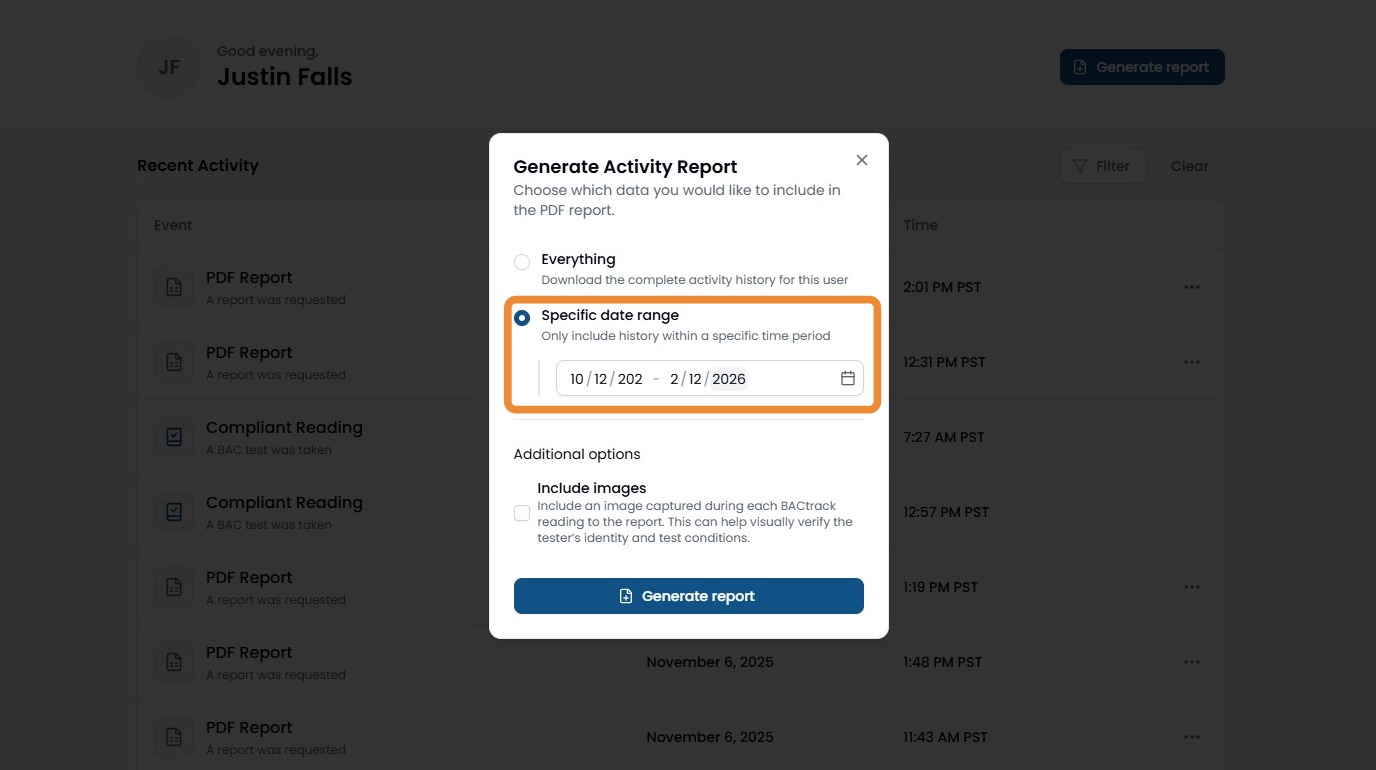
8. Next, enter the date range for tests you wish to view in this report.
9. If you would like the images included, select the Include Images option.
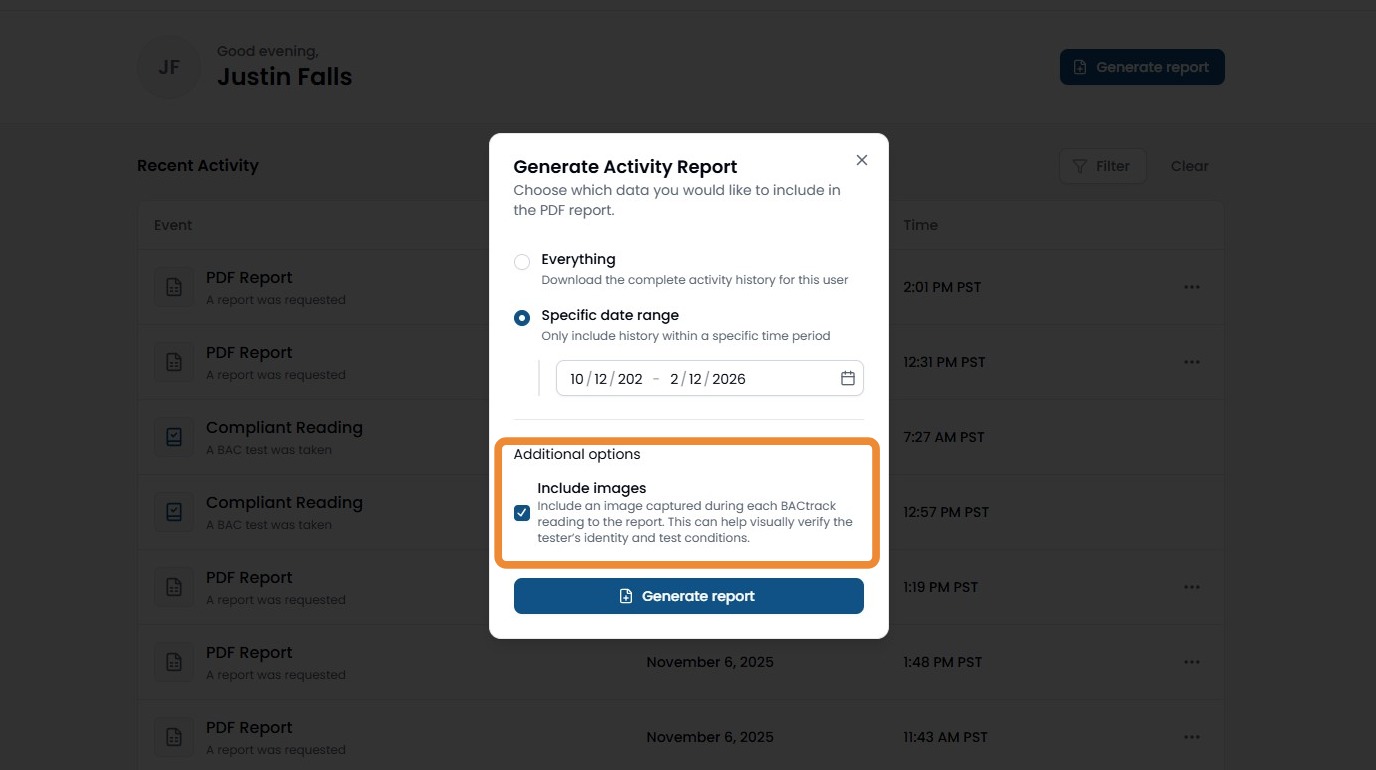
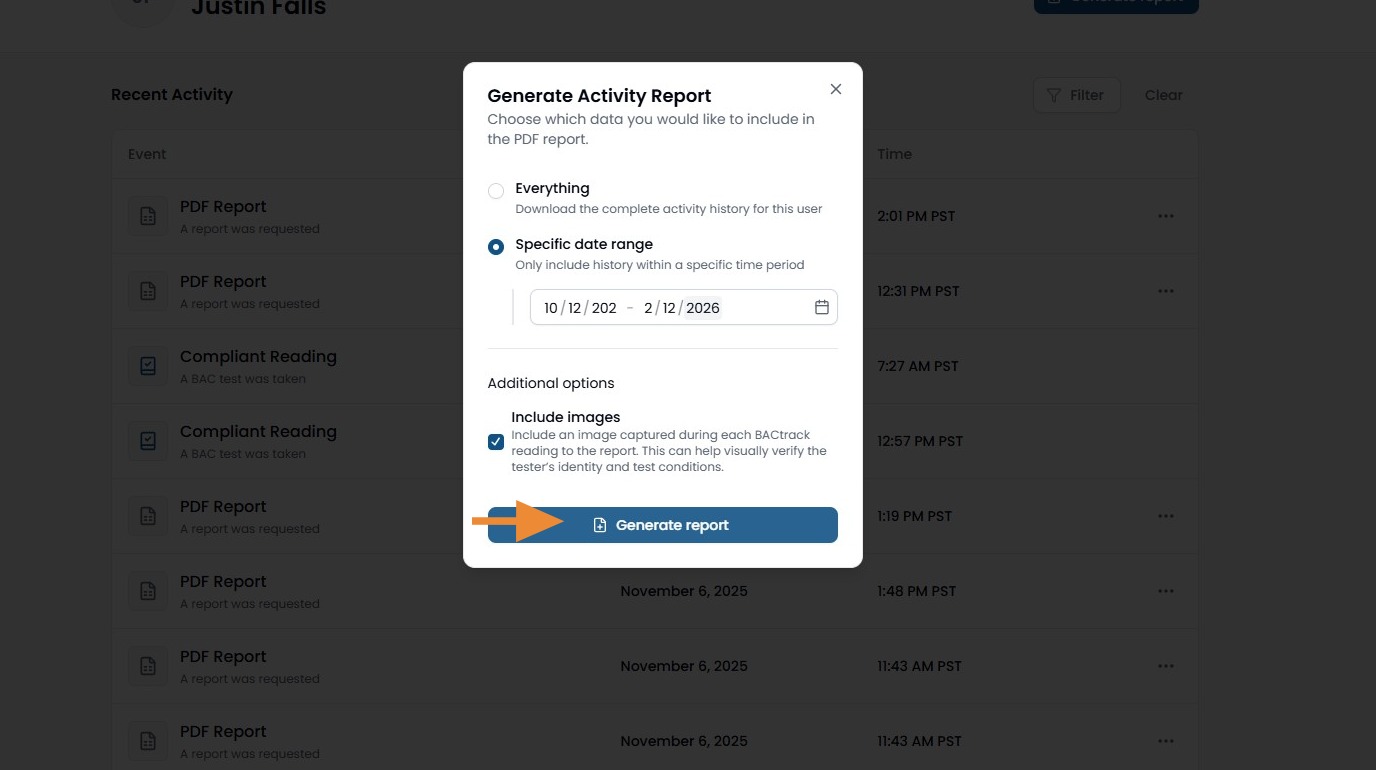
10. Click "Generate report"
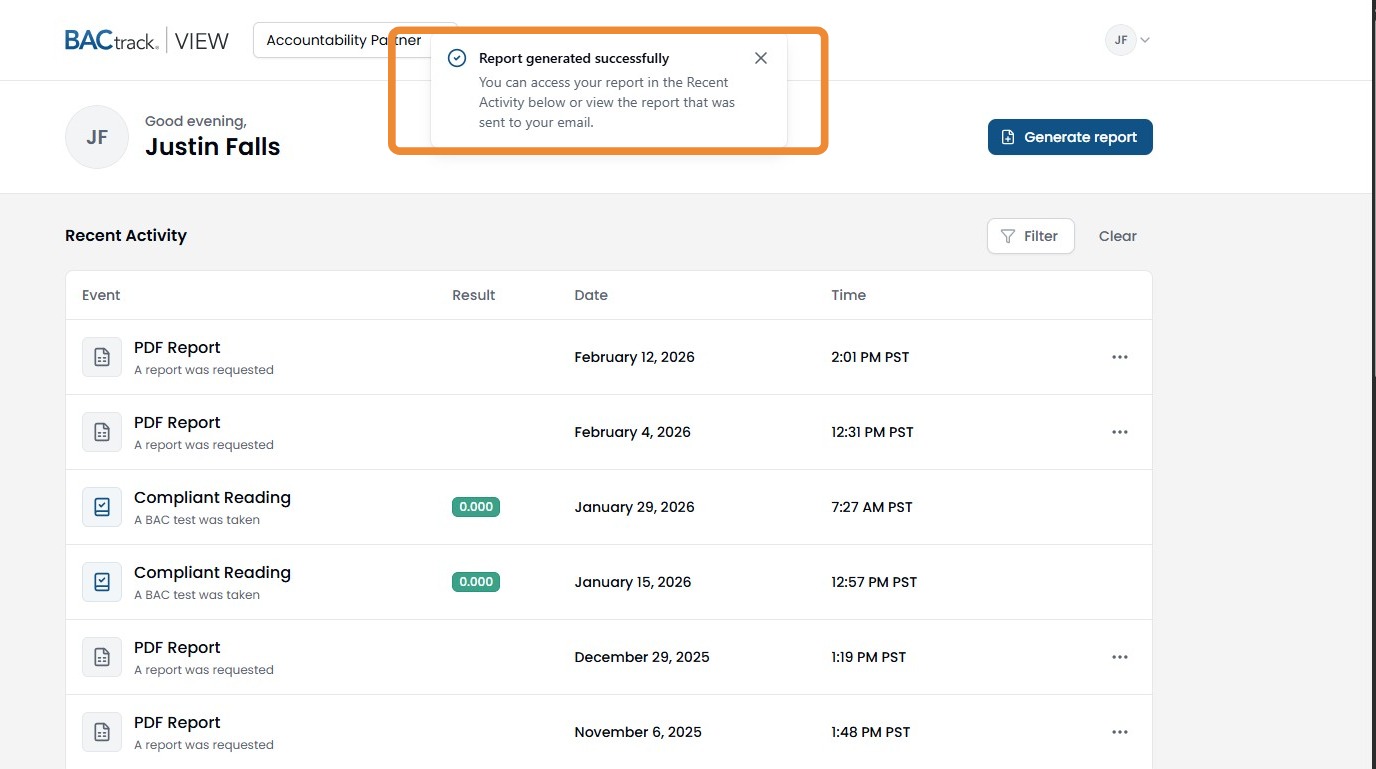
11. A confirmation will appear at the top of your screen. A copy of the report was also sent automatically to your email.
12. You may need to refresh your screen, but the recent PDF report will appear in the recent activity list.
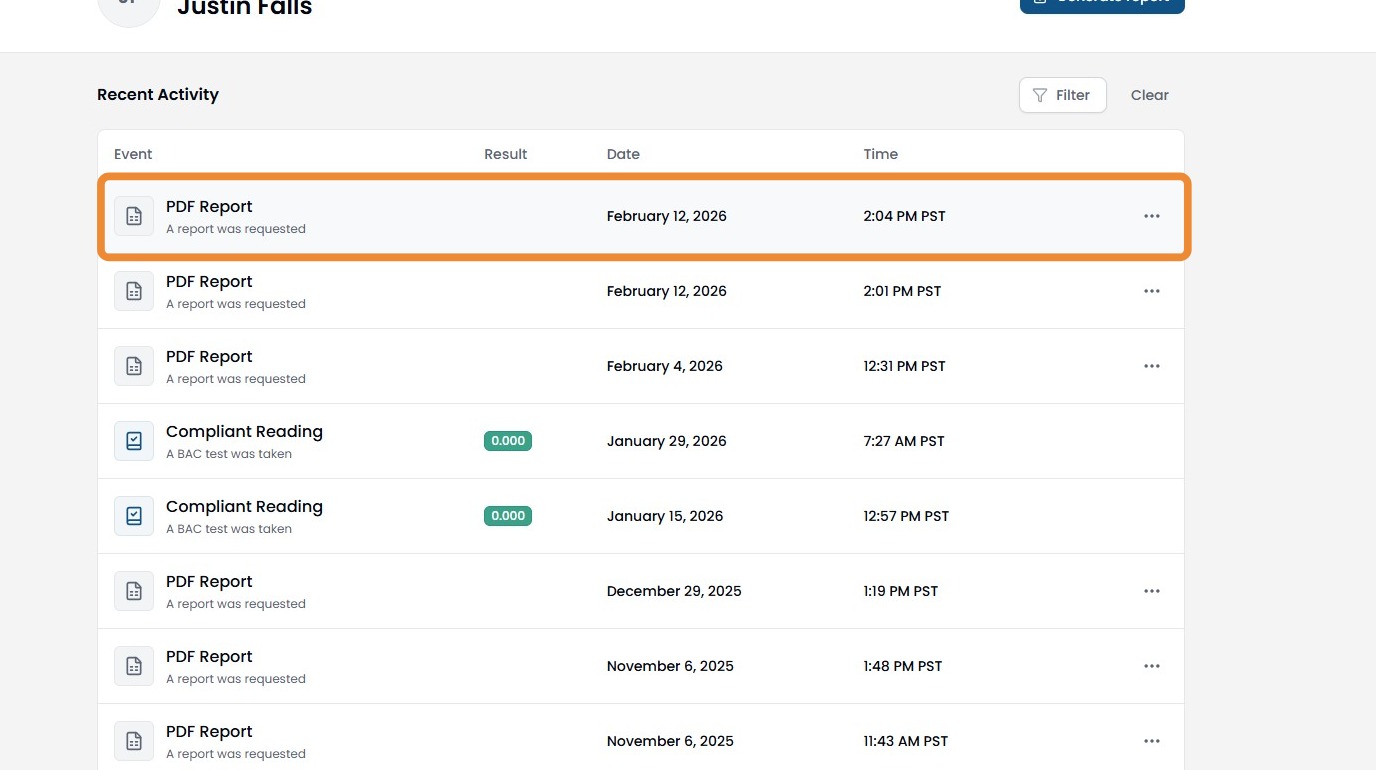
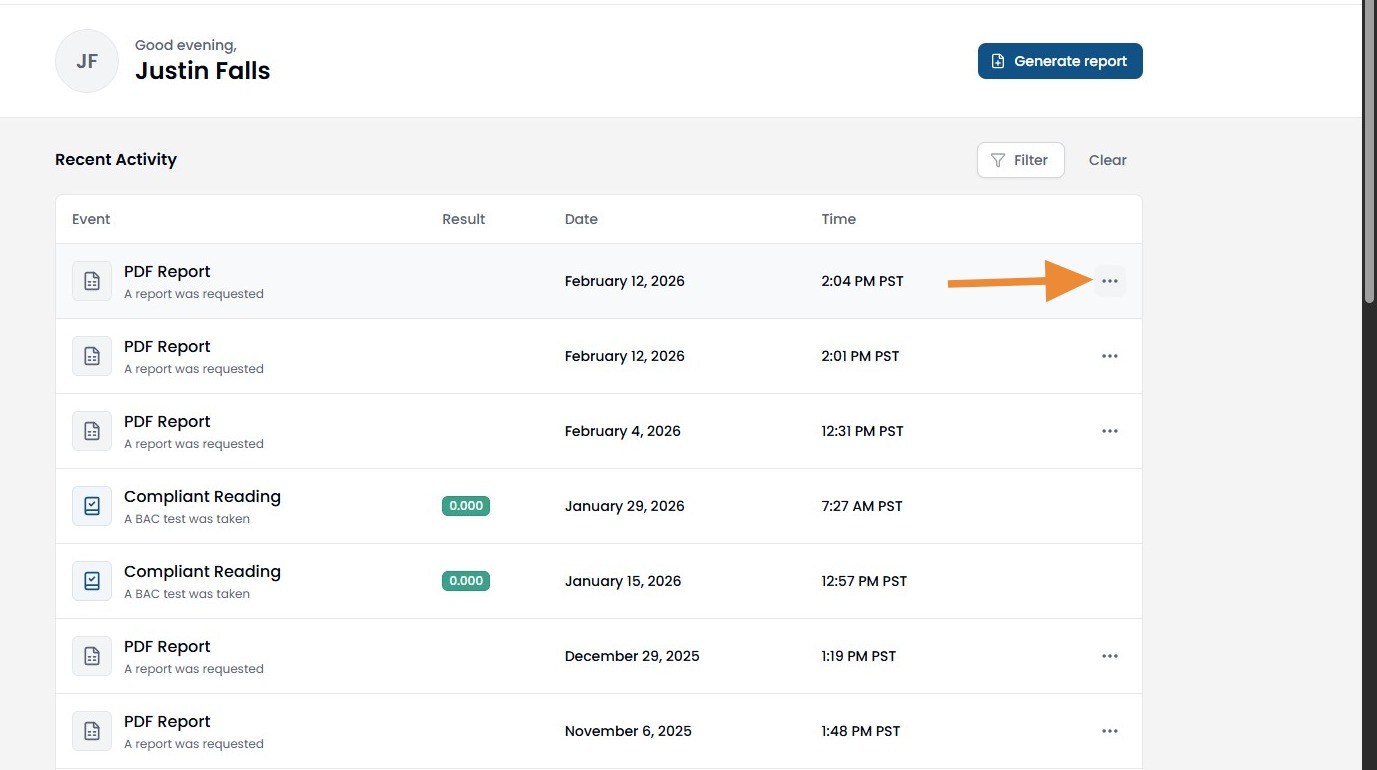
13. If you wish to download the PDF to your computer, click the 3 dots to the right of the PDF report.
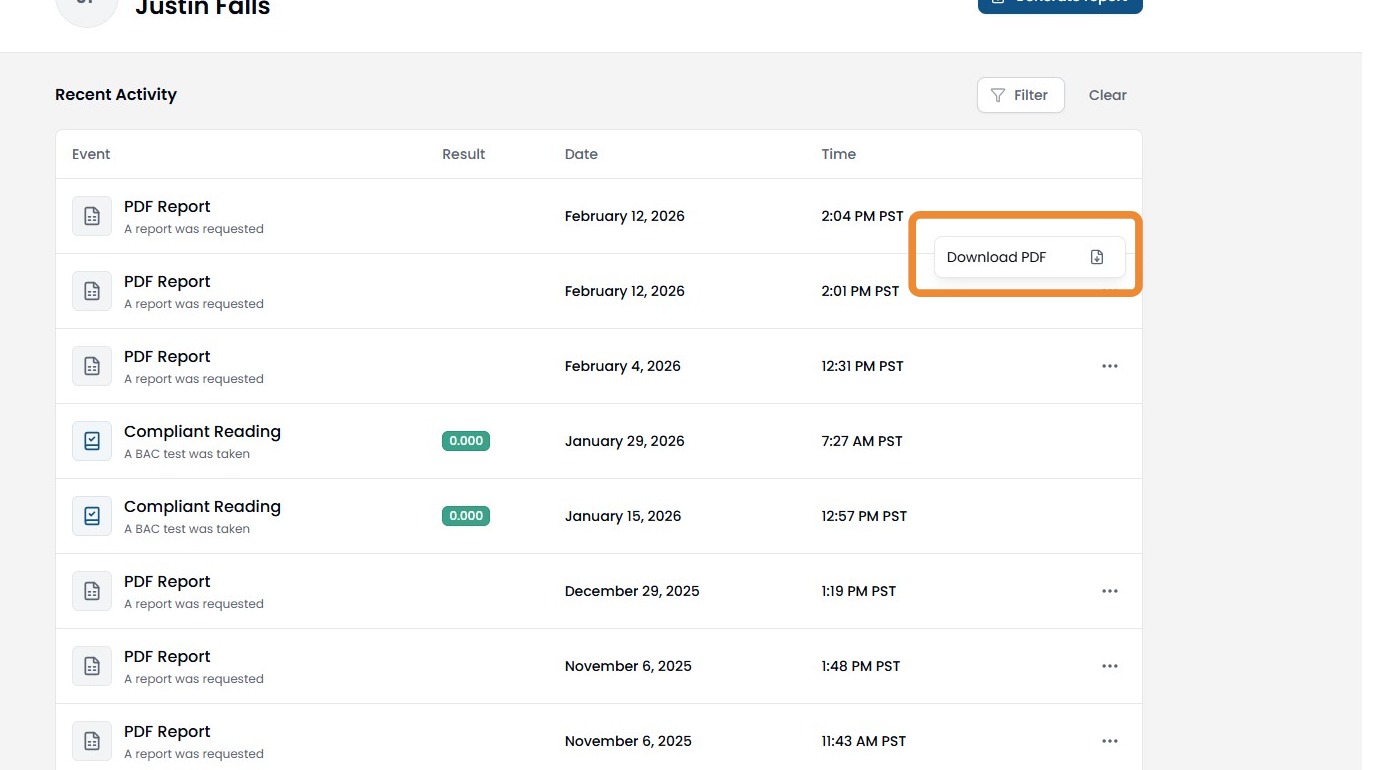
14. Click "Download PDF"
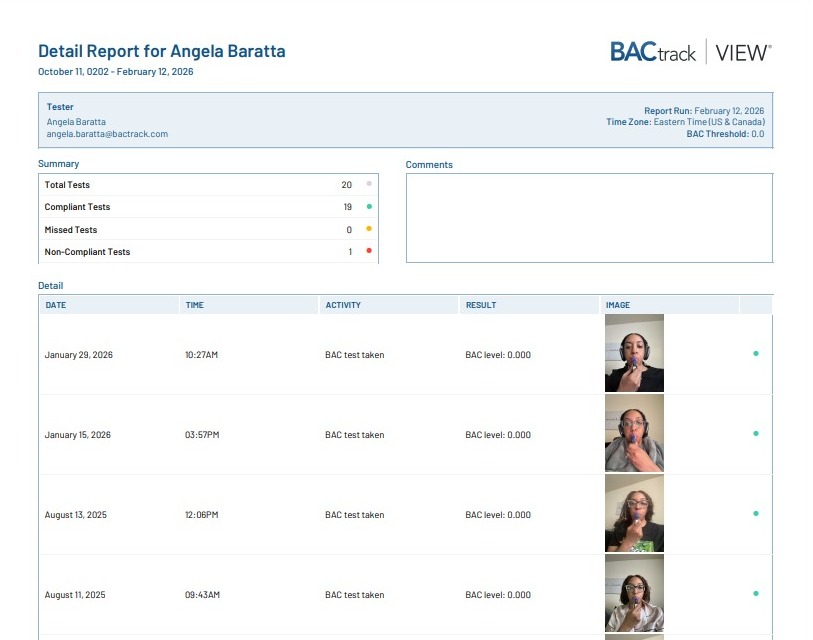
15. Here is an example of what the report will look like when viewed.
Downloading a PDF Report from the BACtrack View App
- Log into the BACtrack View app with your email and password.
-
There will be a drop down at the top of the screen. If you have access to multiple accounts, you can select the person for whom you wish to download a report.
3. Here you can select which account you wish to view.
4. Click the clock icon at the top right corner.
5. Here you will see an activity history. Click the download icon at the top right corner.
*If you need to filter by a certain date or include images, please refer to the web portal steps at the top of this article. Downloading the report in the app will not include images and will include all testing history from the beginning of the account.
6. You will then see a confirmation that the PDF report was sent to your email.
Comments
0 comments
Please sign in to leave a comment.