
NOTE: Only Self Testers and Monitors have the ability to set or manage schedules. Testers and Accountability Partners are unable to set or manage schedules.
Creating a Test Schedule from the BACtrack View App
- Log into the BACtrack View app.
-
Click the Plus Icon at the bottom right of the calendar.
3. Next you will the schedule making screen.
4. If you toggle on the Repeat Test option, you will be able to select the days of the week you wish for that schedule to occur.
5. You can also choose to randomize testing by toggling on the Randomize Test option.
6. Once you enter in all of the parameters for a random test if applicable, or when all of your schedule looks correct, click the Schedule Test option at the bottom.
7. You will see a confirmation once it is created. Click OK to exit this screen.
8. You will be taken back to the schedule screen. Click Close to exit out.
Creating a Test Schedule from the BACtrack View Web Portal
1. Log into the BACtrack View Web Portal here: BACtrack View Web Portal
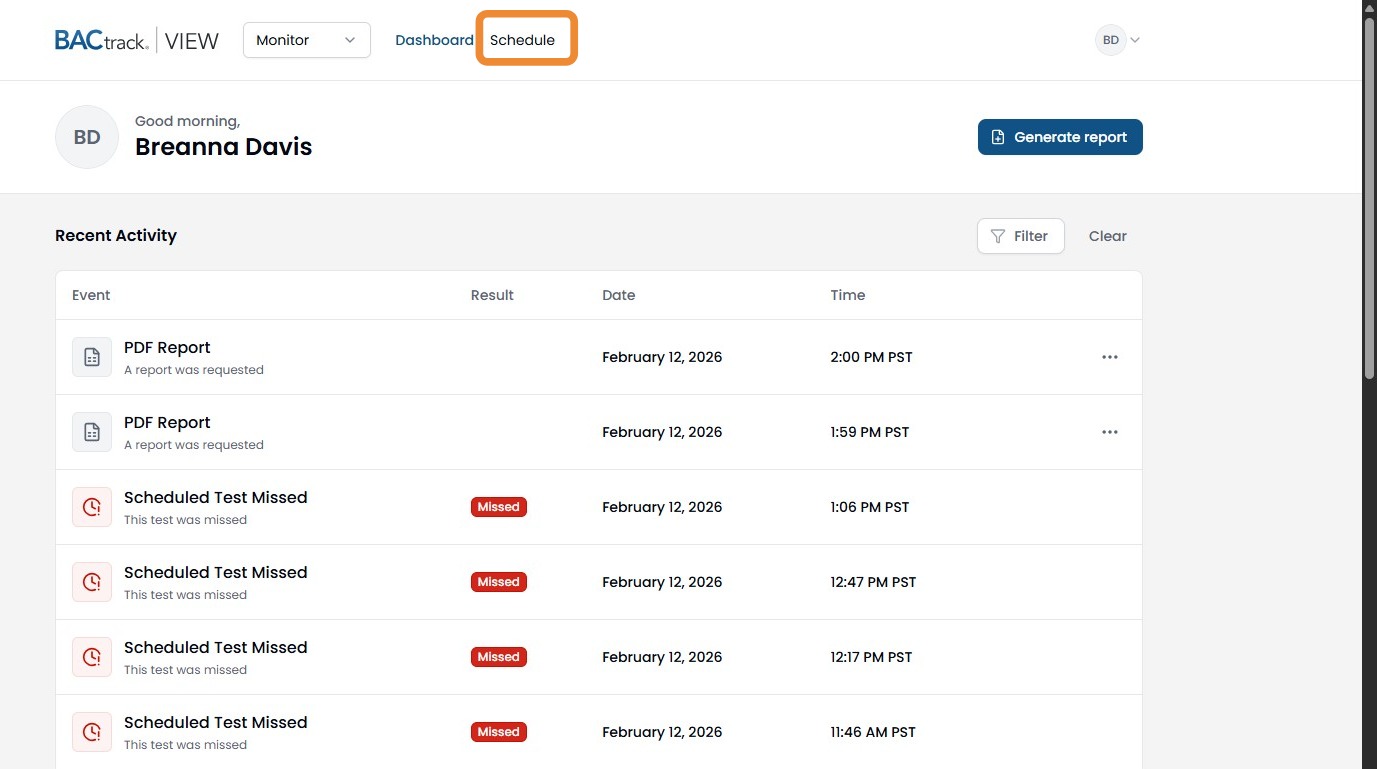
2. Click "Schedule"
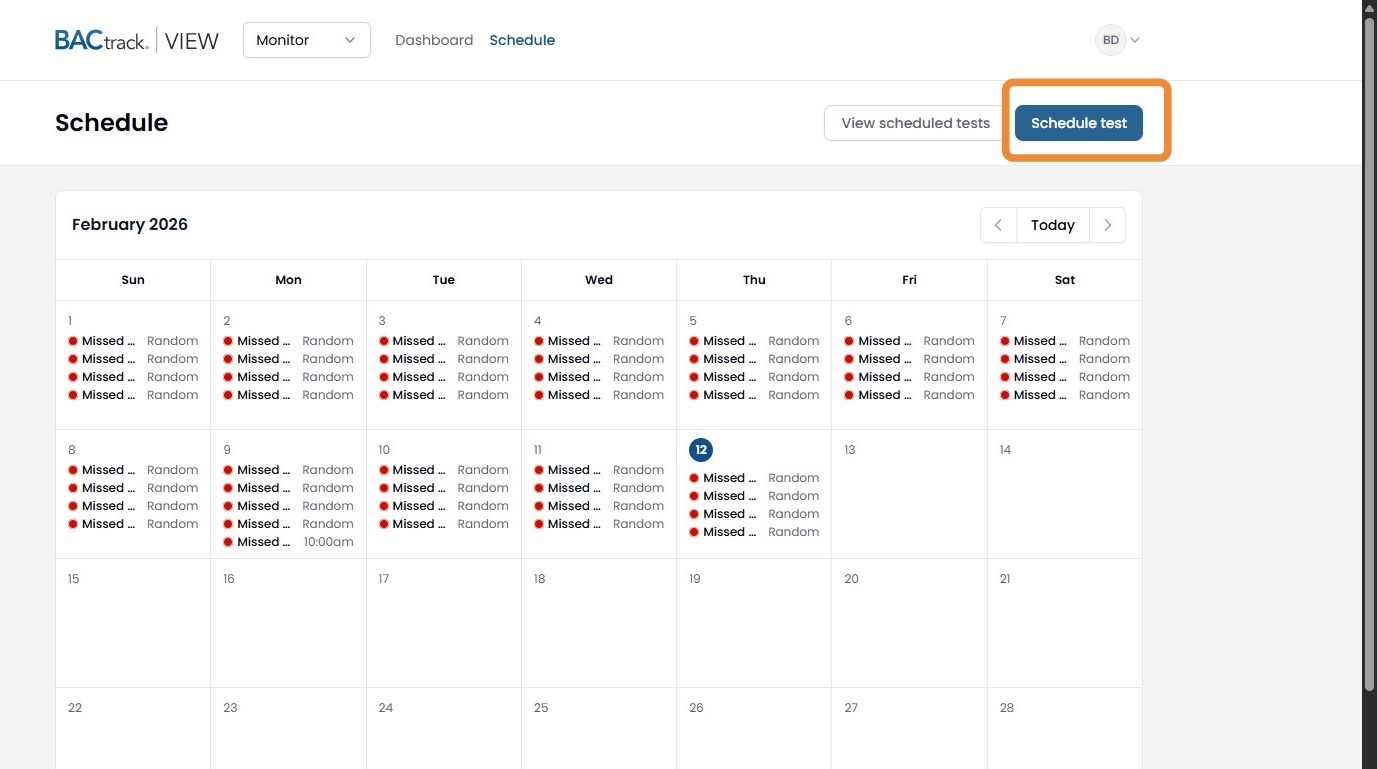
3. Click "Schedule test"
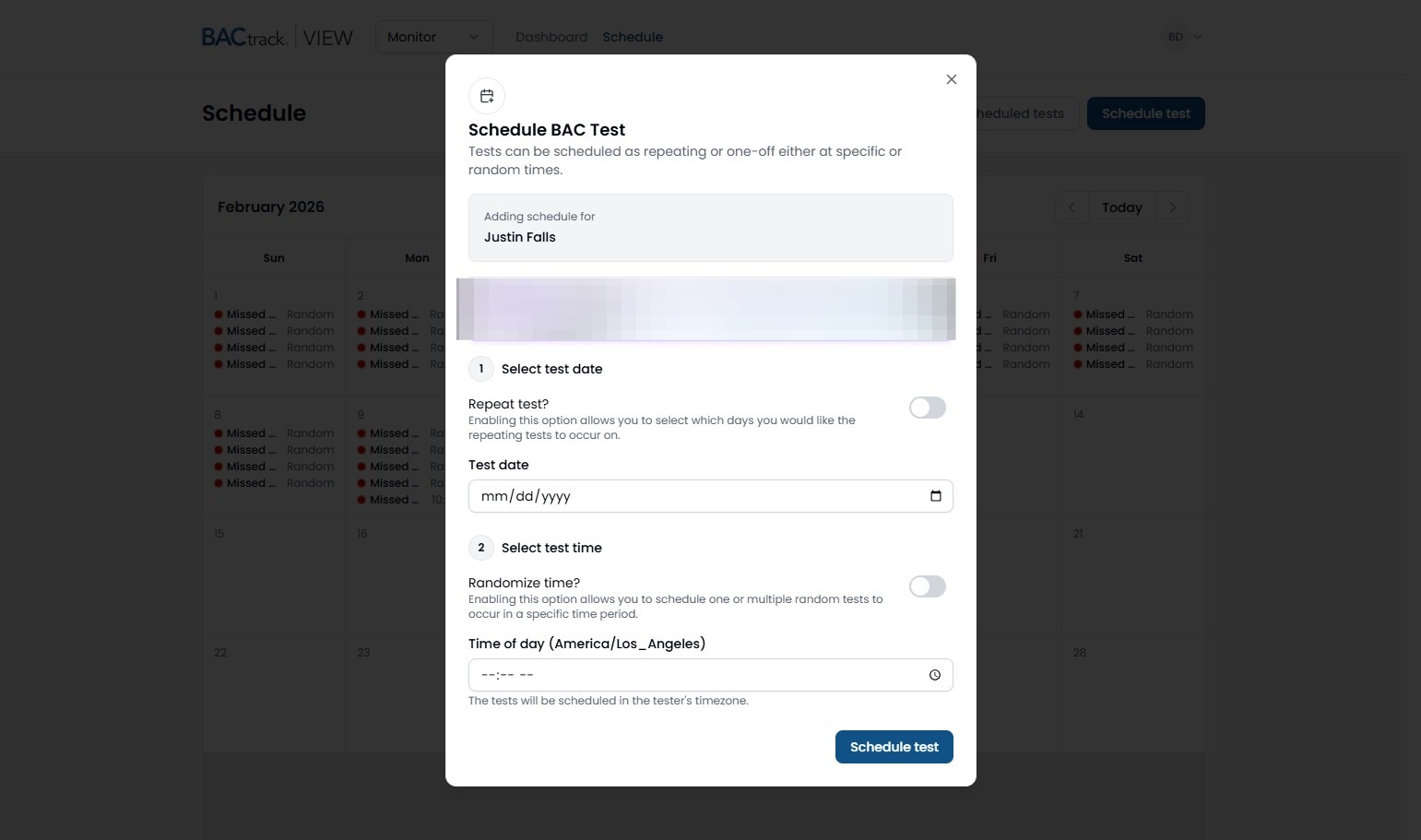
4. Here you will see the test creation screen.
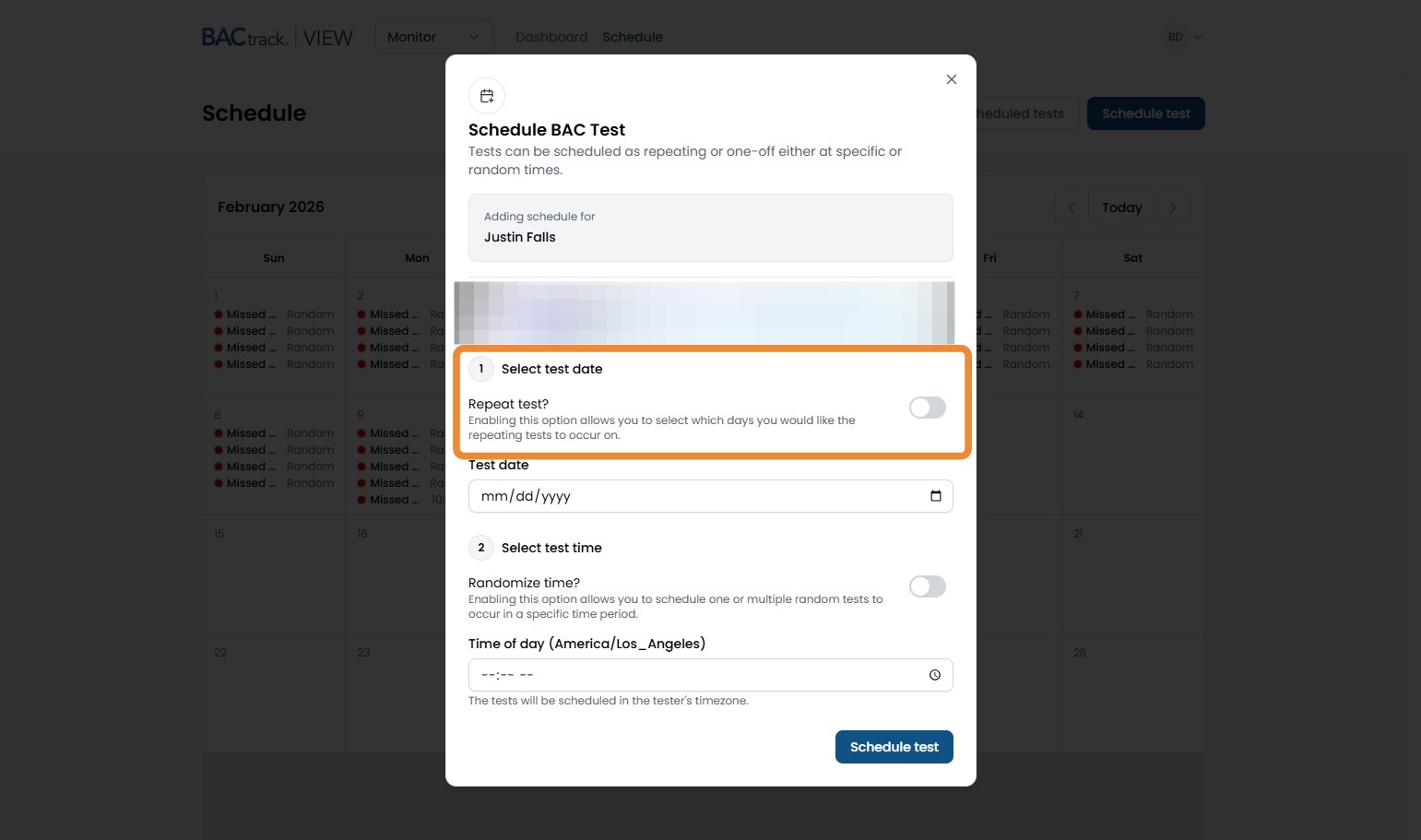
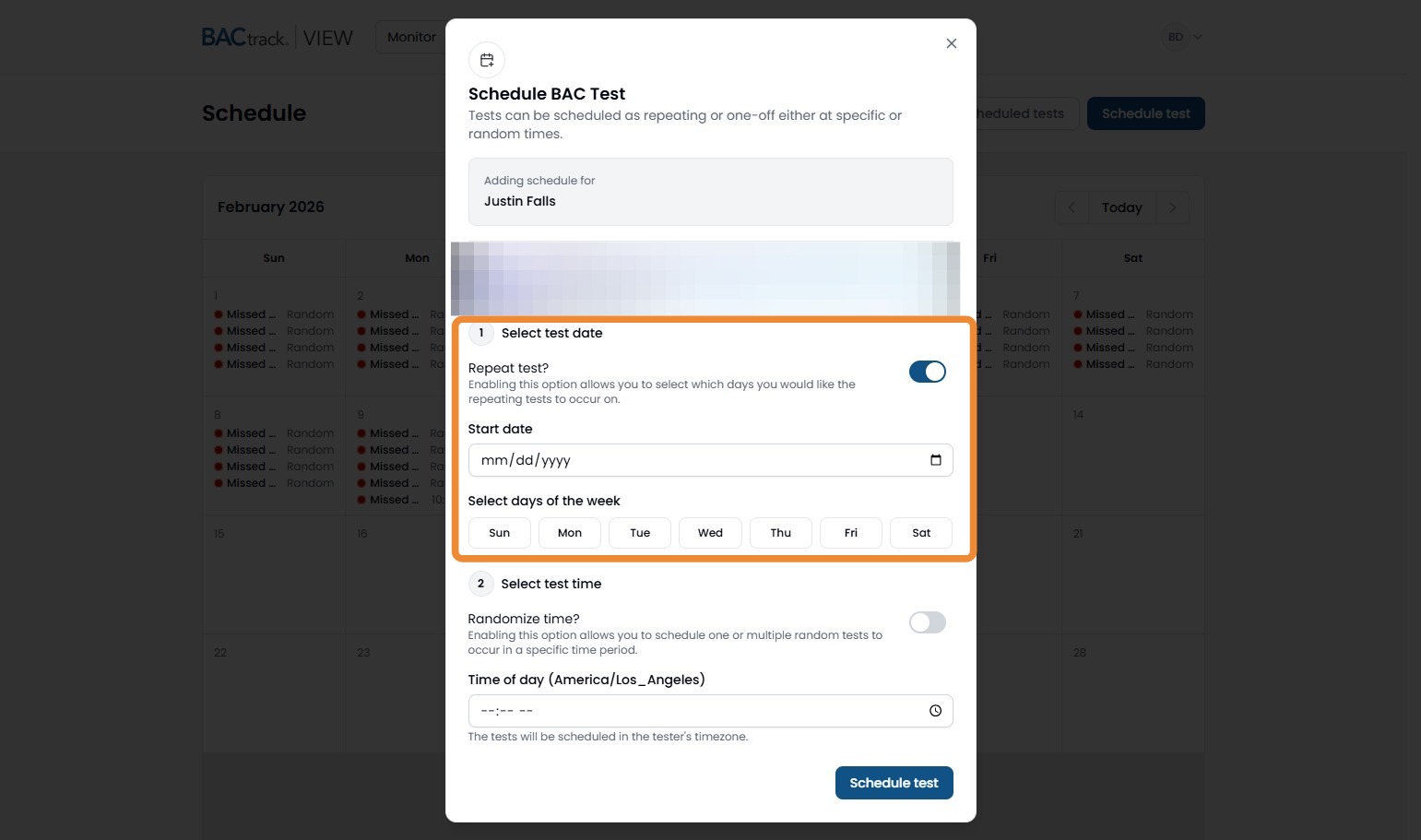
5. You can toggle the Repeat Test option on if you wish this to be a repetitive schedule.
6. You will then select the start date of this schedule. If it repeats, you will have the option to select which days of the week this schedule will occur.
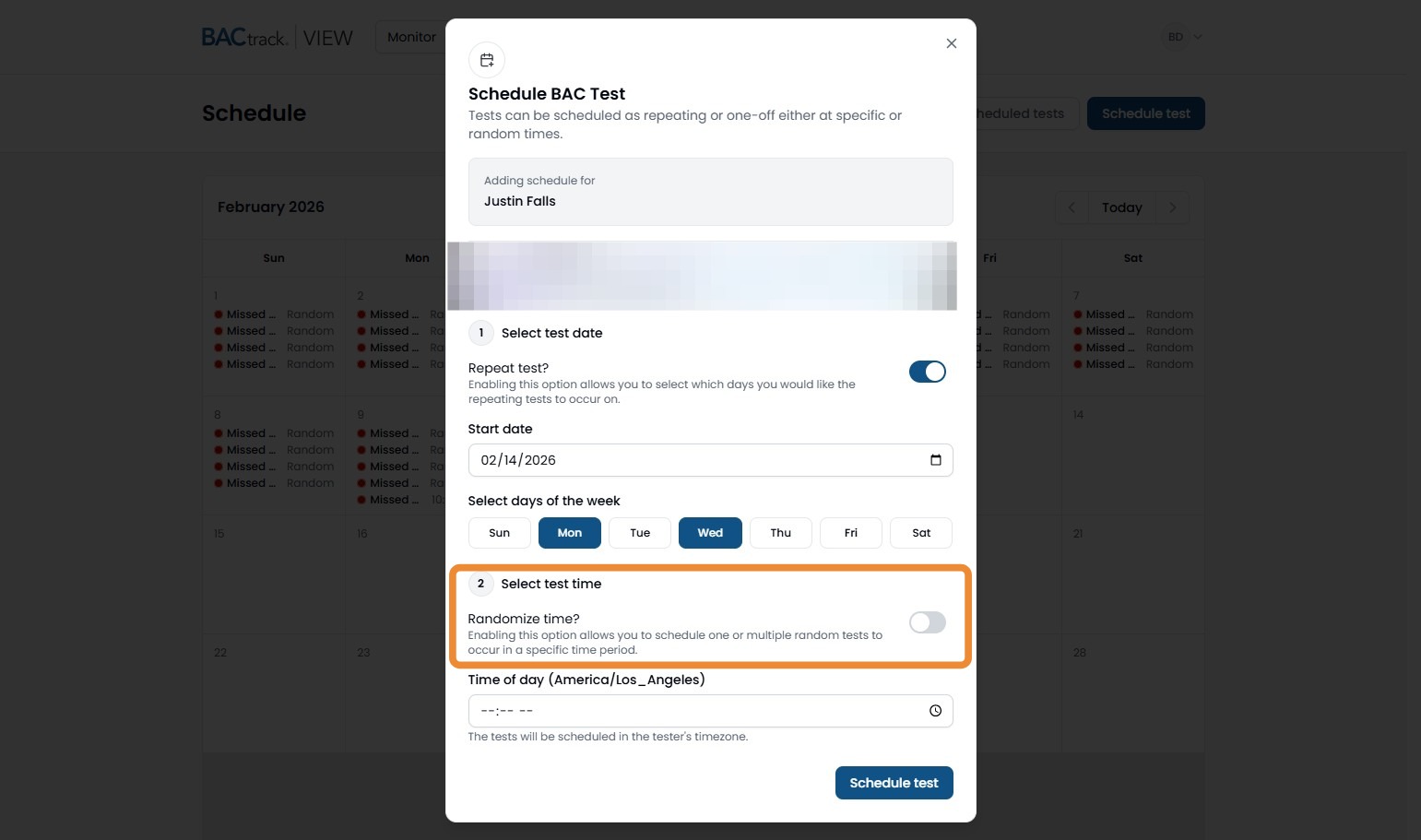
7. If this needs to be a randomized schedule, you can toggle the Randomize time option on.
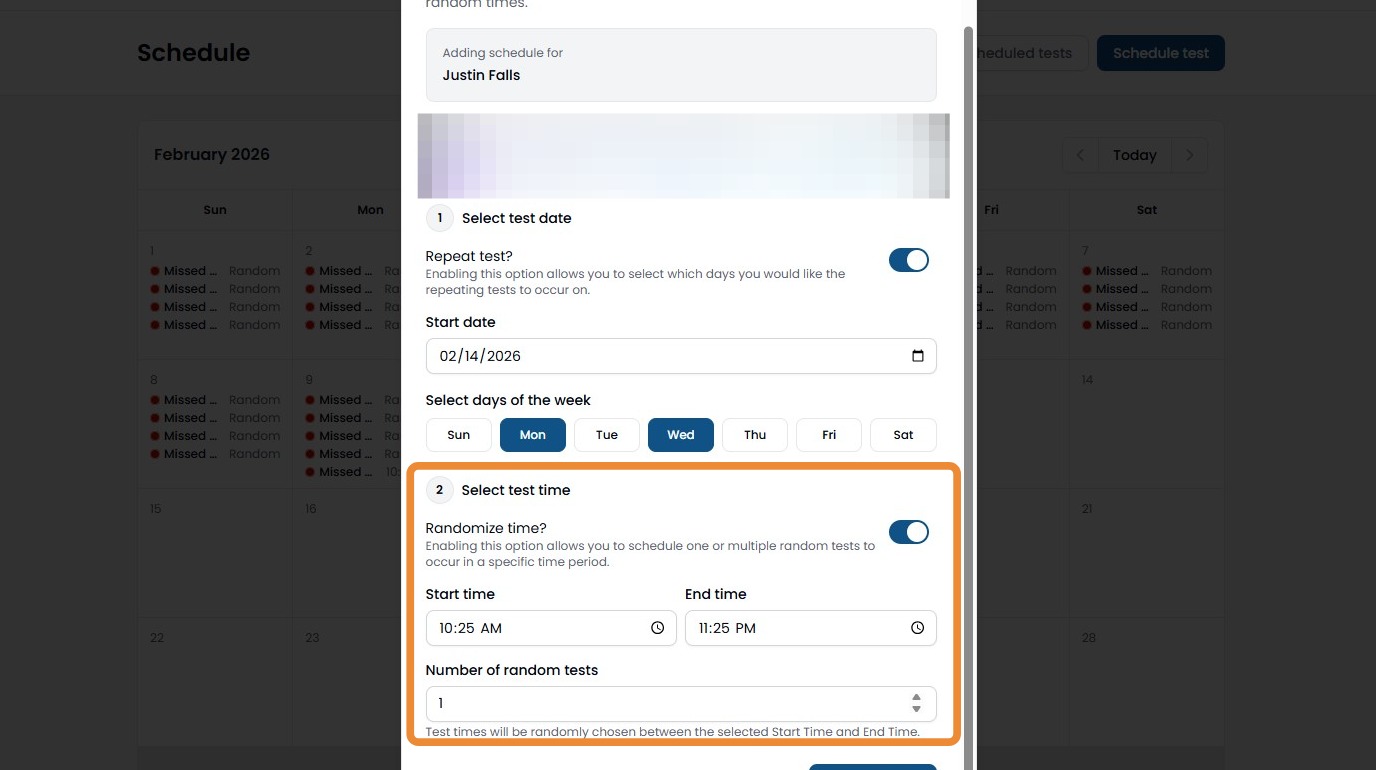
8. If it is randomized, you can select the time frame and how many random tests you would prefer within that time frame.
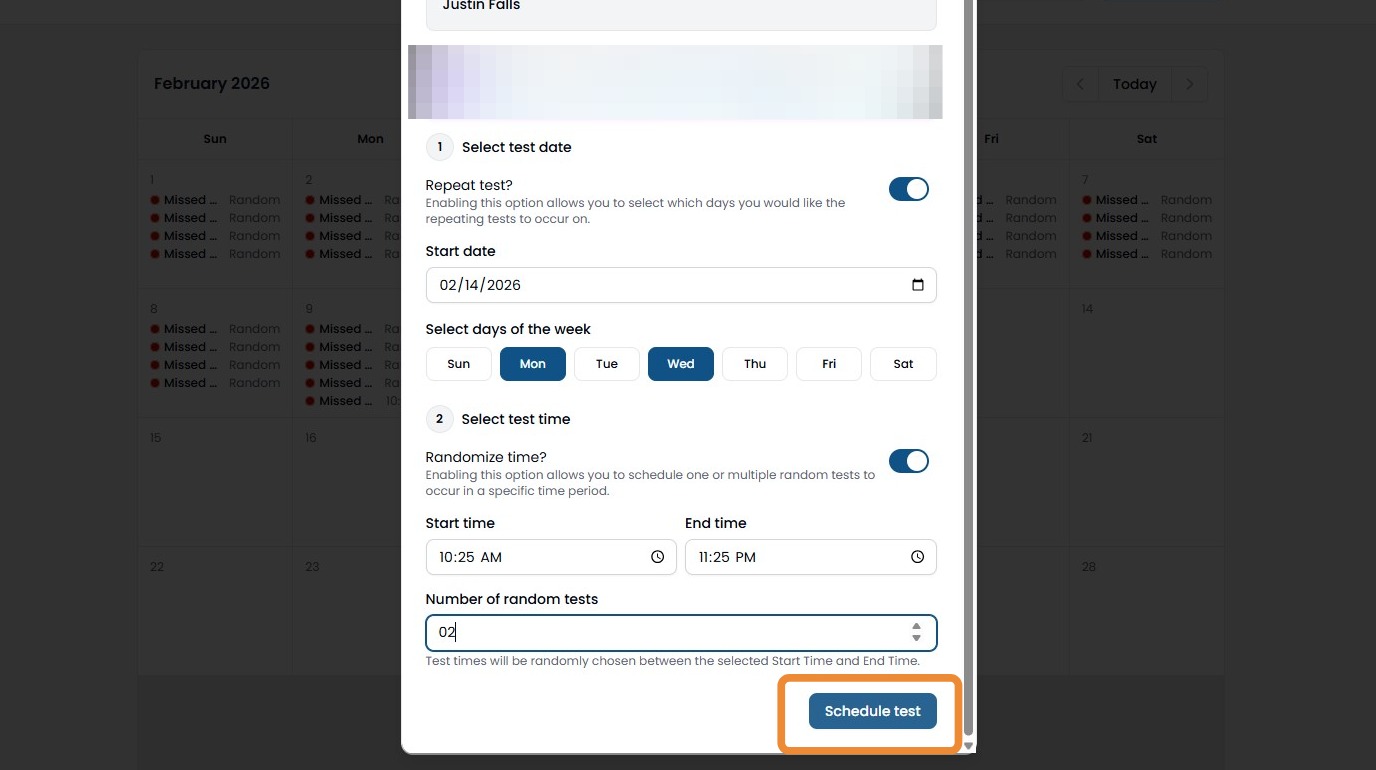
9. Once the schedule is set up, click Schedule Test at the bottom.
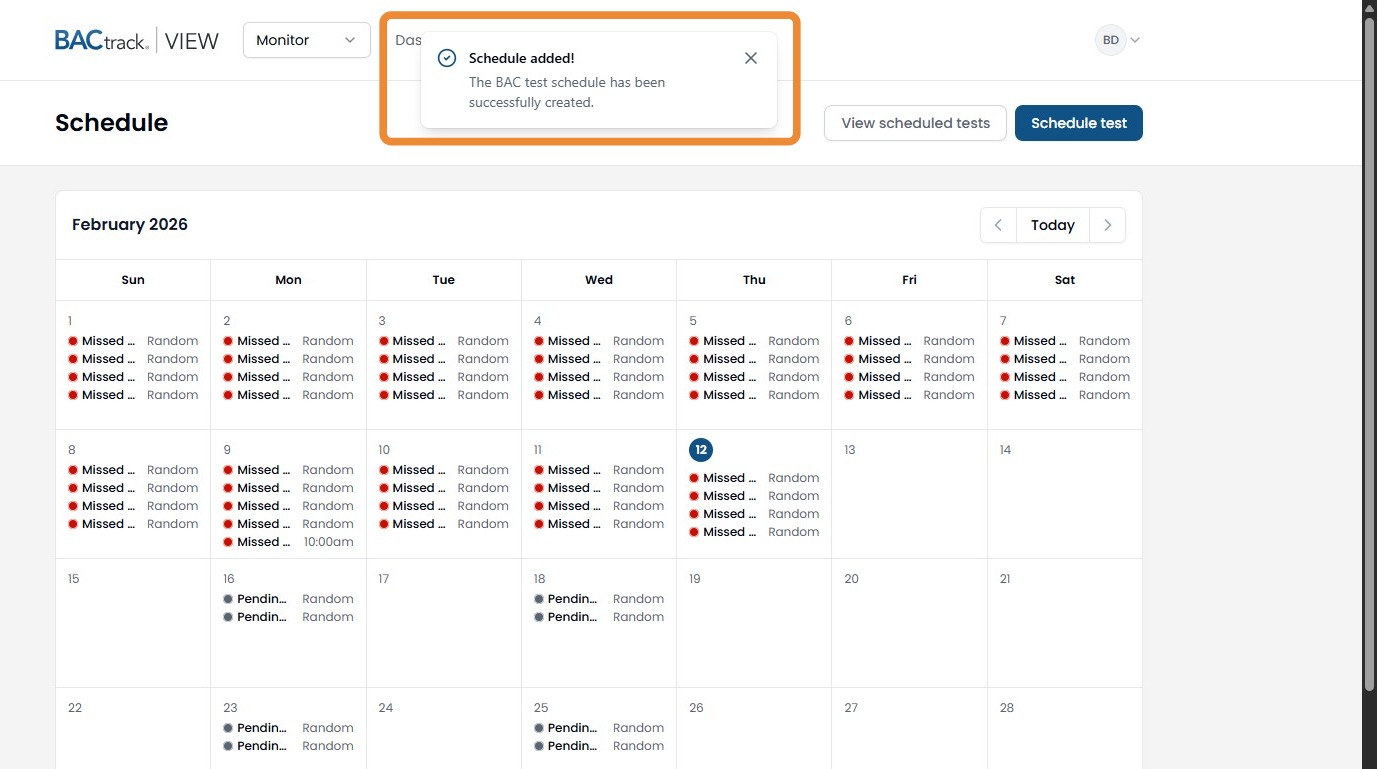
10. On the next screen, you will see a confirmation that the schedule was created.
Comments
0 comments
Please sign in to leave a comment.